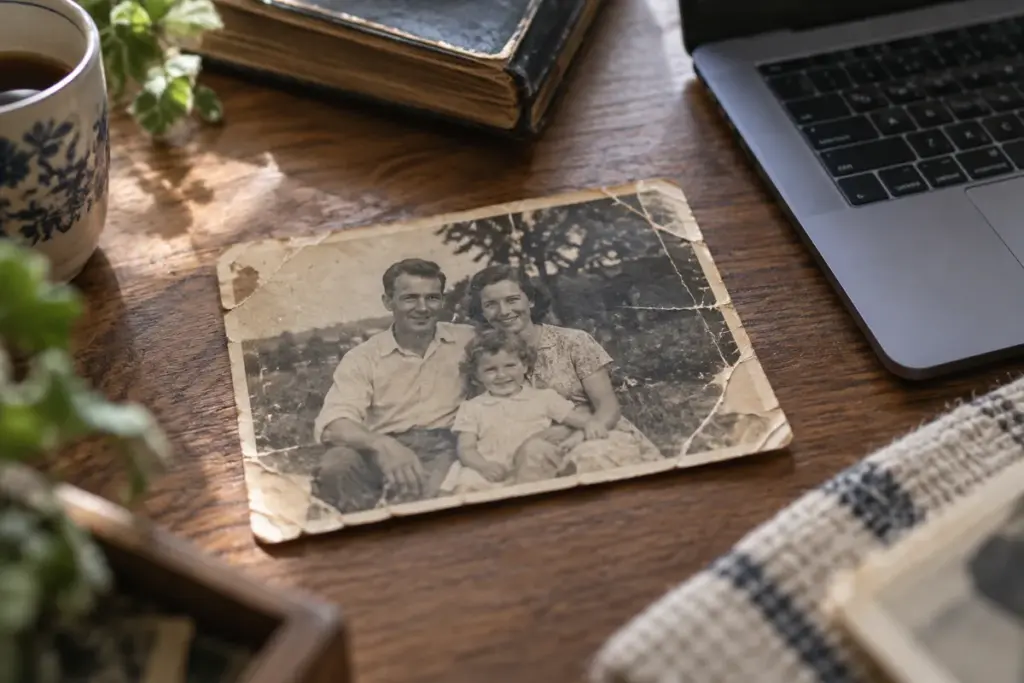
If you are looking for a free way to restore an old family photo, the honest answer is that almost nothing in this category is free without a condition attached. Some tools give you a small number of free jobs. Some hand back your photo with a logo stamped on it. Most free upscalers either cap the output size or add a watermark unless you pay (fal.ai). And one option is genuinely, permanently free — but it asks for your time instead of your money.
So the useful question is not “which tool is free.” It is “which kind of limit can I live with.” This guide sorts the main options by that question, using prices and conditions verified on 21 September 2026.
The short answer: “free” means four different things
Before comparing names, it helps to know which of these four you are being offered. Every free tier in this category is one of them.
- A free allowance. You get a set number of restorations, then you pay. Good if you have one or two photos.
- A watermark. The restoration is free, but the output carries the company’s logo. Removing it costs money.
- An output cap. The work is free but the file you get back is smaller or lower resolution than the tool is capable of. Most free upscaling tools cap output size or add a watermark unless you pay (fal.ai).
- Actually free, forever. Open-source software with no allowance, no watermark, no cap. The cost is the learning curve.
If you have three photos, category one is fine. If you have three hundred, category four starts to look very different.
What each tool’s free tier actually gives you
Here is where the main options stand. Cells marked Not verified were not confirmed in the sources used for this article — they are not claims that the feature is absent.
| Tool | Free tier | Watermark on free output | Paid from | Source |
|---|---|---|---|---|
| Remini | Small free allowance, then credits | Not verified | Credit packs from $4.95; about $9.95/mo (a $9.99/week cycle also reported) | PixExtender; Magic Memory |
| MyHeritage | Free signup required | Yes — logo, bottom right | $119–$259 / year | MyHeritage; MemoryCherish; Magic Memory |
| VanceAI | Not verified | Not verified | About $4.95 / month | Magic Memory |
| Fotor | Free online AI restoration tool | Not verified | Not verified | Creighton University Libraries |
| GIMP | Completely free, no usage limits | Not verified | Free (open source, no licensing fees) | GIMP; Imagen AI |
| Let’s Enhance | Not verified | Not verified | Not verified | Compared in published side-by-side tests |
| HitPaw | Not verified | Not verified | Not verified | Compared in published side-by-side tests |
| Picsart | Not verified | Not verified | Not verified | Compared in published side-by-side tests |
Verified 21 September 2026. Pricing and free limits in this category change frequently — check the vendor page at the time of reading.
Remini is free to download, but restoration exports are gated by a small free allowance, after which you buy credit packs or a subscription (PixExtender). Credit packs have been listed from $4.95, with a subscription at about $9.95 per month (PixExtender). A weekly billing price of $9.99 has also been reported, which is an unusually short billing cycle for this kind of product (Magic Memory).
MyHeritage Photo Enhancer requires a free signup to use (MyHeritage). Its paid plans have been listed in the $119 to $259 per year range (Magic Memory) — an annual commitment rather than a monthly one, which matters if you only have a handful of photos.
VanceAI has been listed at around $4.95 per month, which places it at the lower end of paid enhancers (Magic Memory).
Fotor offers a free online photo restoration tool with AI features (Creighton University Libraries), which makes it a reasonable place to try one photo without installing anything.
The watermark problem nobody mentions upfront
This is the detail that most “best free tools” lists leave until after you have uploaded your photo.
Non-subscribers of MyHeritage receive enhanced photos with a MyHeritage logo watermark in the bottom right corner (MemoryCherish). The restoration itself is real work — the logo is simply the price of not subscribing.
Other services structure it differently. Some offer a limited number of free daily transforms that are watermarked, with a small one-off fee for a clean download (MakeMeA). That model is often cheaper than a subscription if you genuinely only need a few clean files.
And as noted above, most free upscaling tools cap output size or add a watermark unless you pay (fal.ai). Whether a logo in the corner matters depends entirely on what you plan to do with the file — worth deciding before you start, not after.
Free vs paid: when paying actually makes sense
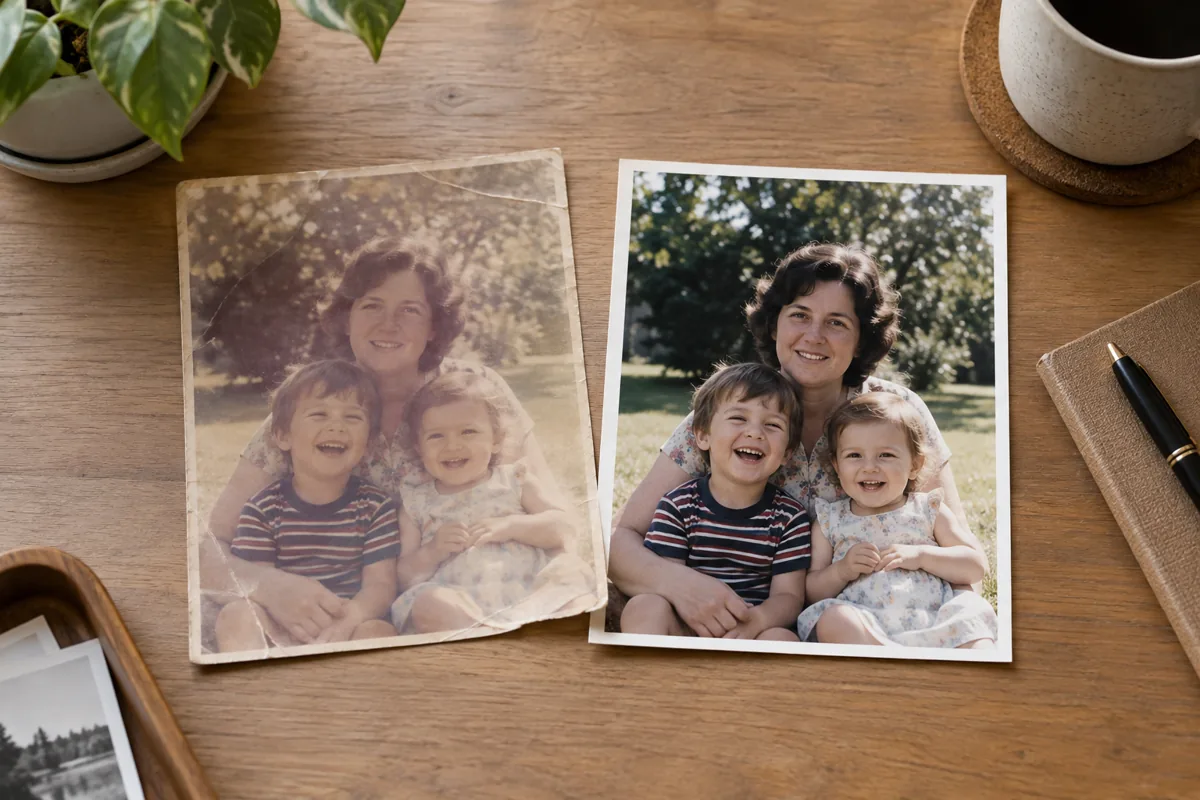
The break-even point is about volume, not quality.
One or two photos. Stay on free tiers. Run the same photo through two or three tools, keep the best result, pay nothing. If one of them watermarks the output and you need it clean, a small one-off fee (MakeMeA) is cheaper than any subscription.
A whole album. Once you are working through dozens of photos, free allowances run out fast and you spend your evening juggling accounts. This is where a paid plan stops being a luxury.
Watch the billing cycle. This is the most expensive mistake in the category. A weekly cycle such as the $9.99 figure reported for Remini (Magic Memory) is easy to sign up for and easy to forget. An annual plan in the $119–$259 range (Magic Memory) is a larger single decision but a clearer one. Before you subscribe to anything here, put a cancellation reminder in your calendar for the day before renewal.
The completely free option: open-source tools
If the idea of allowances and logos is the thing bothering you, there is a fourth path.
GIMP is free software, released under a license that lets users change its source code and redistribute their changes (GIMP). Open-source editors such as GIMP can be used for commercial projects with no licensing fees required (Imagen AI). There is no allowance to run out and no upgrade prompt.
The trade-off is real. GIMP is a no-cost image editor with Photoshop-style layers, filters and masking features, but it requires patience to master (PCMag). It is also frequently recommended for photo restoration specifically when users want no usage limits (Creighton University Libraries).
Put simply: the web tools trade your money for speed, and GIMP trades your time for control. If you have a large collection and some patience, that is a good trade.
Your scan quality decides the result
This section will save you more disappointment than any tool choice on this page.
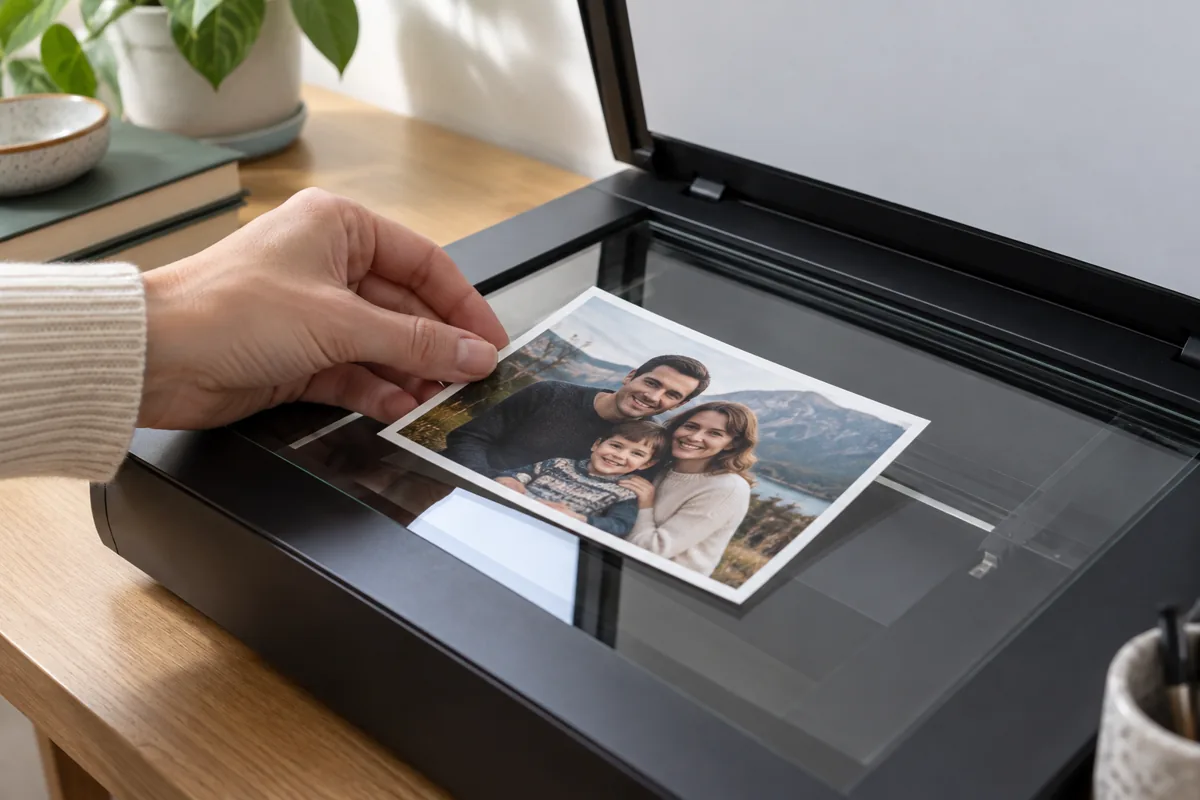
A scan can look worse than the original print because of low resolution settings or a dirty scanner surface, rather than any fault of the AI tool (NokiaMob). People often blame the restoration software for a problem that was introduced before the software ever saw the file.
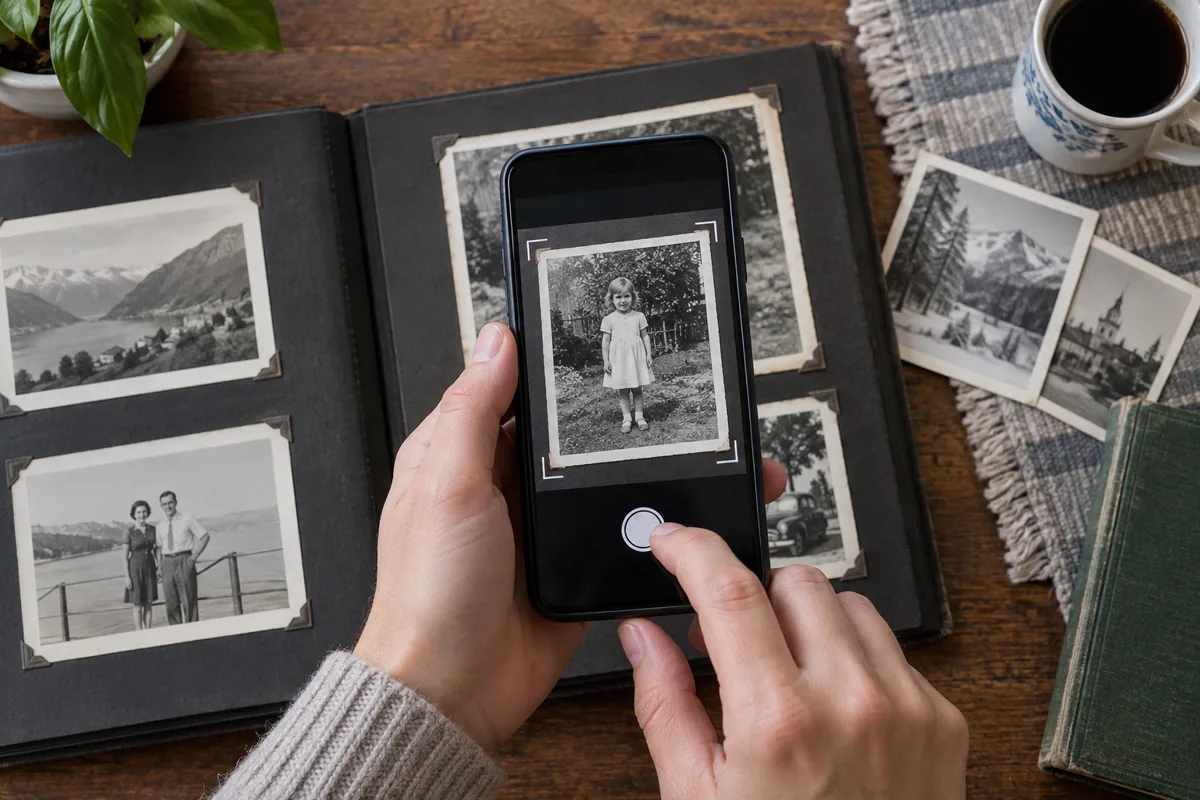
If you are capturing prints with a phone, use a dedicated scanning app. Using an app such as Google PhotoScan produces a higher-quality, glare-free capture than simply photographing a print with a phone (Photo Restoration Group). Glare is the single most common defect in phone-captured family photos, and no restoration tool can reliably remove it.
One more habit worth adopting: keep the original scan as a separate file and restore a copy (Recraft). Tools change, models improve, and you may want to redo a restoration in two years with something better — as with the Google Photos AI remix feature, new options keep arriving for photos you have already archived. You can only do that if the untouched scan still exists.
A practical order of operations
If you are starting today with one photo, this sequence costs nothing:
- Clean the scanner glass, or use a dedicated scanning app if you are using a phone (Photo Restoration Group).
- Scan at the highest resolution setting available — a weak scan limits everything that follows (NokiaMob).
- Save that file untouched, and work on a copy (Recraft).
- Run the copy through two or three free tiers and compare. A browser-based free option such as Fotor is a low-friction starting point (Creighton University Libraries).
- Check the output for a watermark and for reduced output size before you decide anything is finished (fal.ai).
- Only if you have many photos, and only after you know which tool suits them, consider paying — with a cancellation date already in your calendar.
Frequently asked questions
Why does my restored photo look convincing but somehow wrong?
Because a restored image that looks convincing is not necessarily an accurate representation of the original photograph (Can AI Really Restore Your Old Photos?). These tools generate plausible detail where detail was missing. For a scratch on a background that is helpful. For a relative’s face it is worth looking closely — the tool may have produced a sharp face that is subtly not the right face. Keep the original scan so you can always check (Recraft).
Why is my free download smaller than I expected?
Most free upscaling tools cap output size or add a watermark unless you pay (fal.ai). The restoration you see on screen may be better than the file you are allowed to take away, so always check the downloaded file rather than the preview.
Is a free tool good enough, or do I need to pay?
For a small number of photos, free tiers are usually enough, particularly if you compare two or three. Paying becomes worthwhile when volume makes allowances and account-juggling the bottleneck — and if you would rather not pay at all, GIMP has no usage limits and no licensing fees (GIMP; Imagen AI).
Which tools have been compared side by side?
Independent side-by-side comparisons of old photo restoration apps have been published covering tools including Let’s Enhance, HitPaw, Picsart and MyHeritage (Let’s Enhance). When reading any comparison, including this one, check the date and whether the prices were verified — this category changes month to month.
The bottom line
There is no tool here that is free with no condition attached, except the open-source one that asks for your time instead. So choose by the limit you mind least: an allowance if you have a couple of photos, a small one-off fee if you need a clean file, an annual plan if you are working through an album, or GIMP if you want no limits at all.
And whichever you pick, spend your first effort on the scan. A careful capture with a free tool beats a careless capture with a paid one.
Prices and free limits verified 21 September 2026. This category changes frequently — confirm current terms on the vendor’s own page before subscribing.